Subtotal $0.00


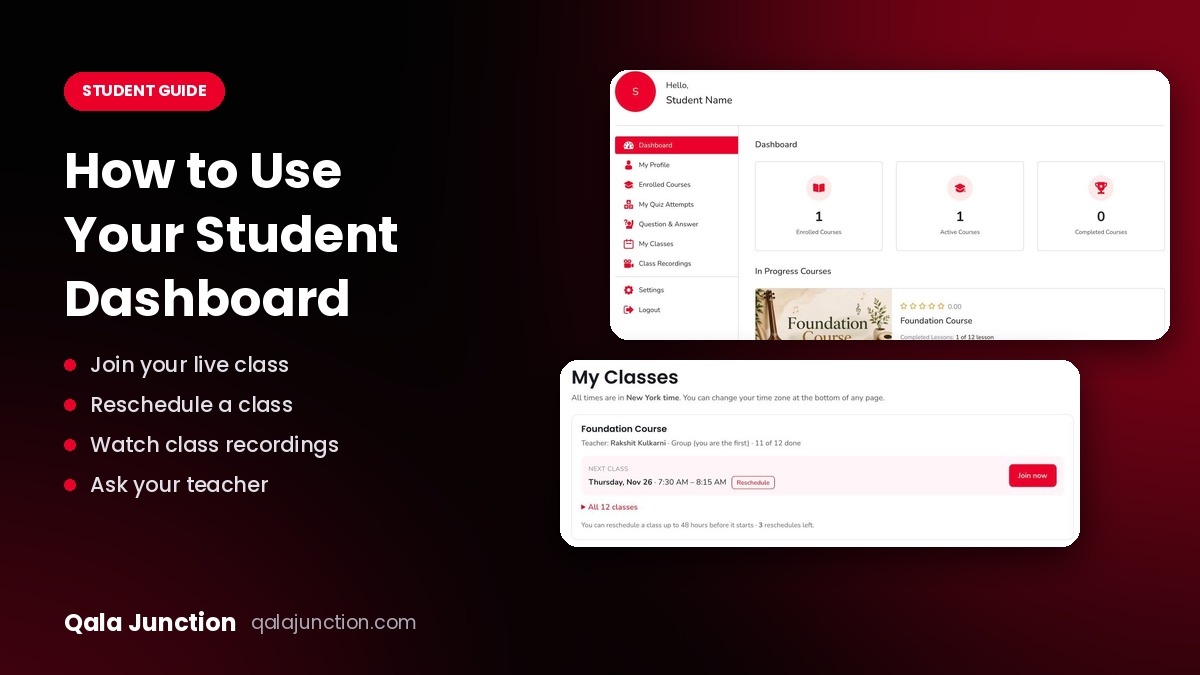
New to Qala Junction? This short guide shows you how to use your student dashboard: how to see your classes, join a live class, watch recordings and ask your teacher a question.
1. Open your dashboard
Log in at qalajunction.com. Then click the person icon at the top right, or go to qalajunction.com/dashboard.
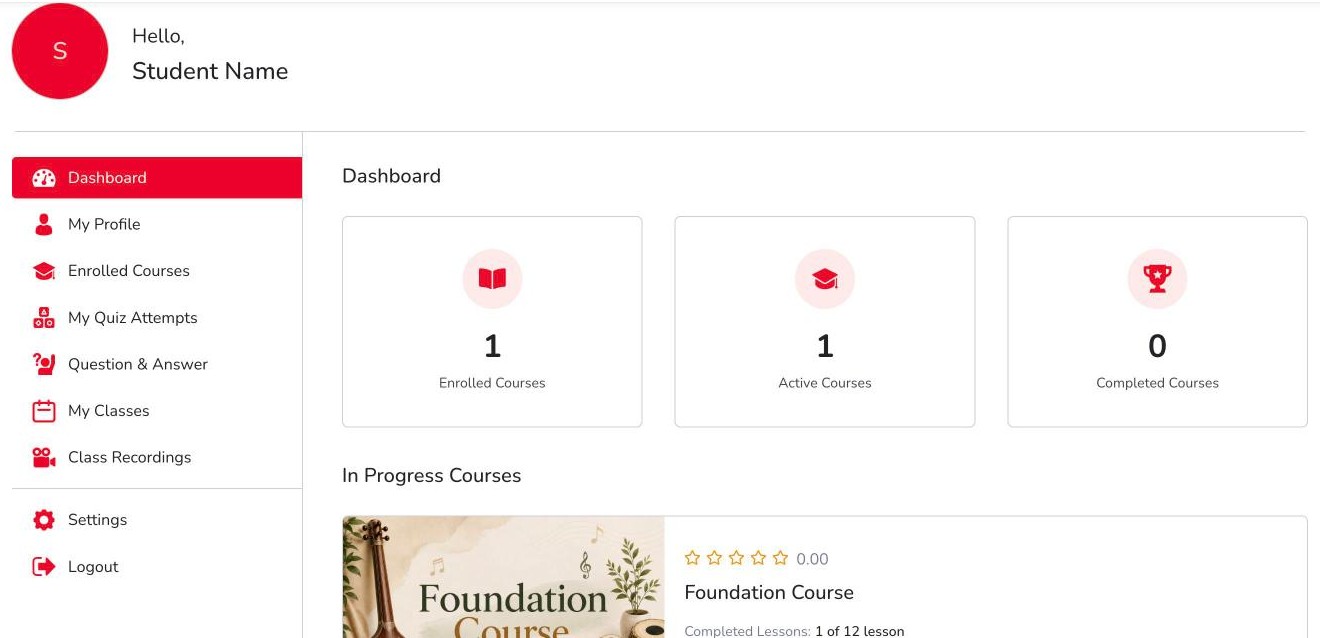
The home page shows how many courses you have and your progress. Your menu is on the left.
2. Set your time zone first
All class times are shown in your time zone. Scroll to the bottom of any page and check the Time zone box. If it is wrong, pick your city.

3. My Classes – your class schedule
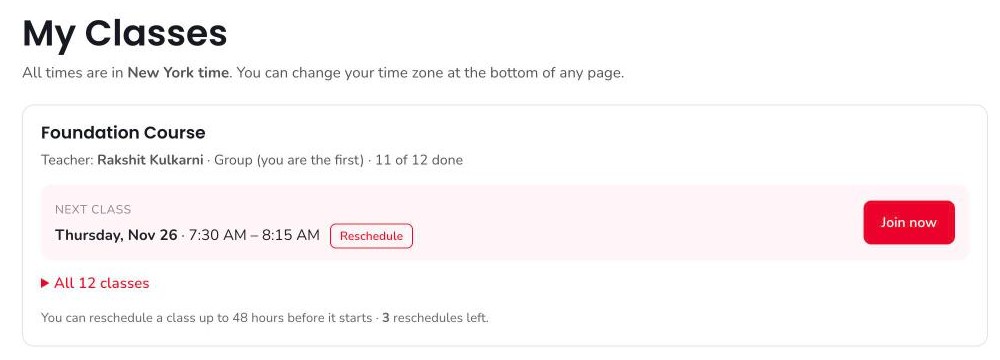
Click My Classes in the menu. Here you see:
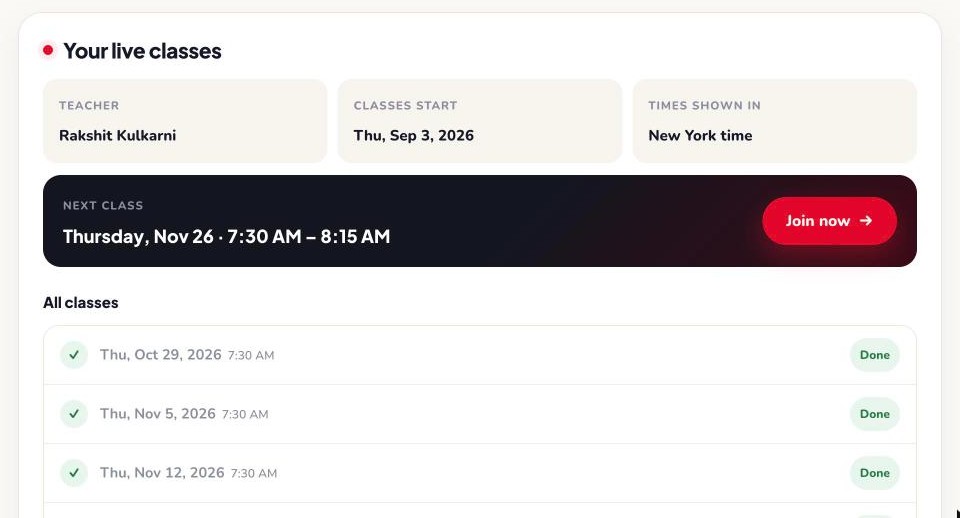
- Your course, your teacher and how many classes are done.
- Your Next class with the date and time.
- The red Join now button to enter the live class.
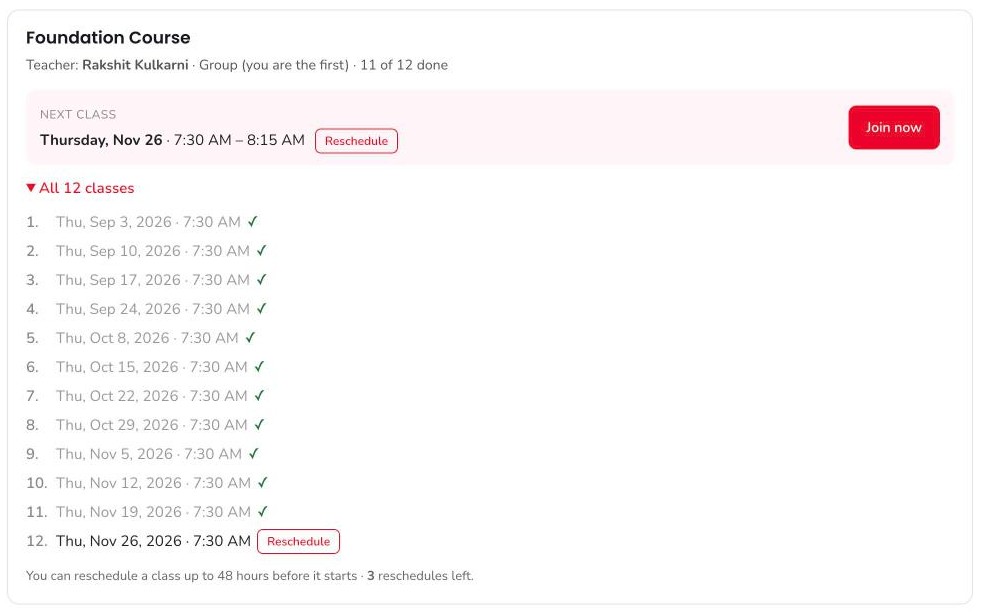
- All classes – click it to see every class date. Done classes have a ✓.
Need to change a class time?
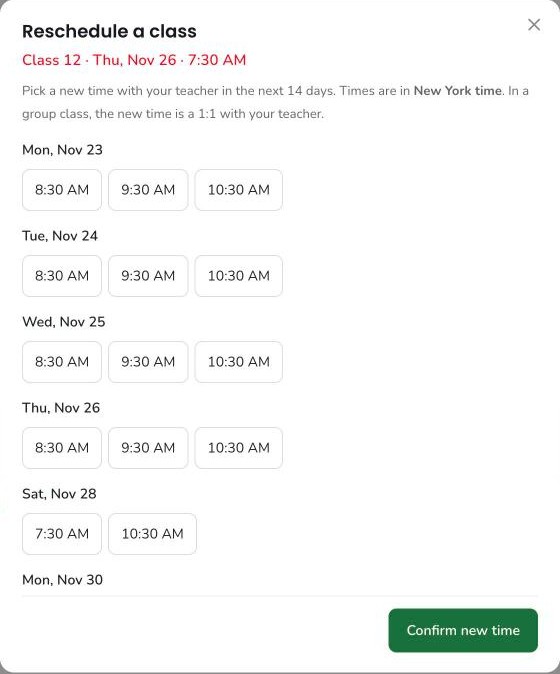
- Click Reschedule next to the class.
- Pick a new time with your teacher (next 14 days).
- Click Confirm new time. You and your teacher get an email.
You can reschedule up to 48 hours before the class. The page shows how many reschedules you have left. In a group class, the new time is a 1:1 class with your teacher.
4. How to join your live class
- A few minutes before class, click Join now (in My Classes or on your course page).
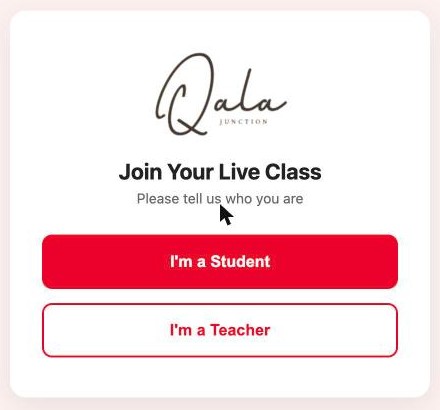
- Click I’m a Student.
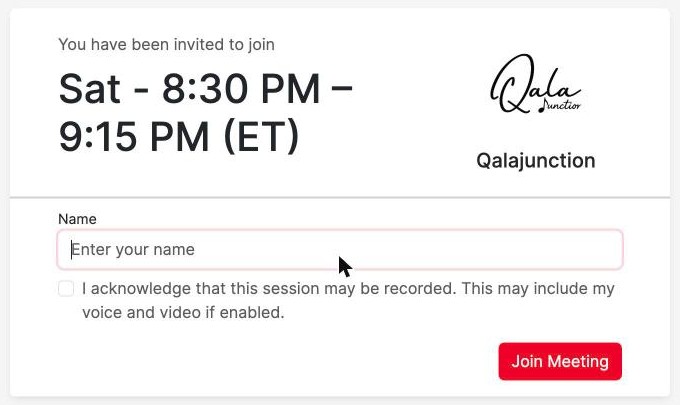
- Type your name, tick the box that the class may be recorded, and click Join Meeting.
- When asked, choose Microphone, do the quick echo test, and allow your camera if needed.
Tips: use Google Chrome on a laptop or computer, use headphones, and allow microphone and camera access when your browser asks. If your teacher has not started the class yet, please wait a minute and try again.
5. Enrolled Courses – your lessons
Click Enrolled Courses, then Continue Learning to open your course.
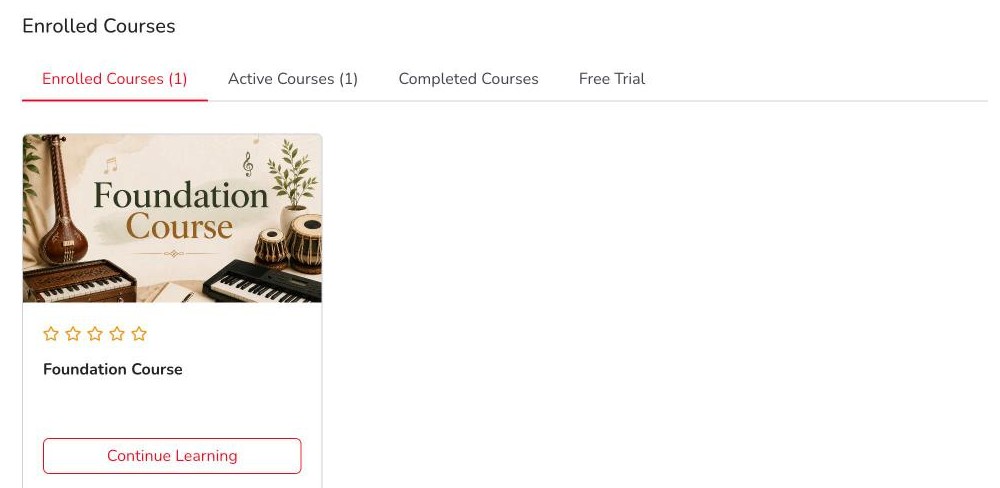
On the course page you see the lesson list on the left and a Your live classes box with your teacher, next class and a Join now button.
6. Class Recordings
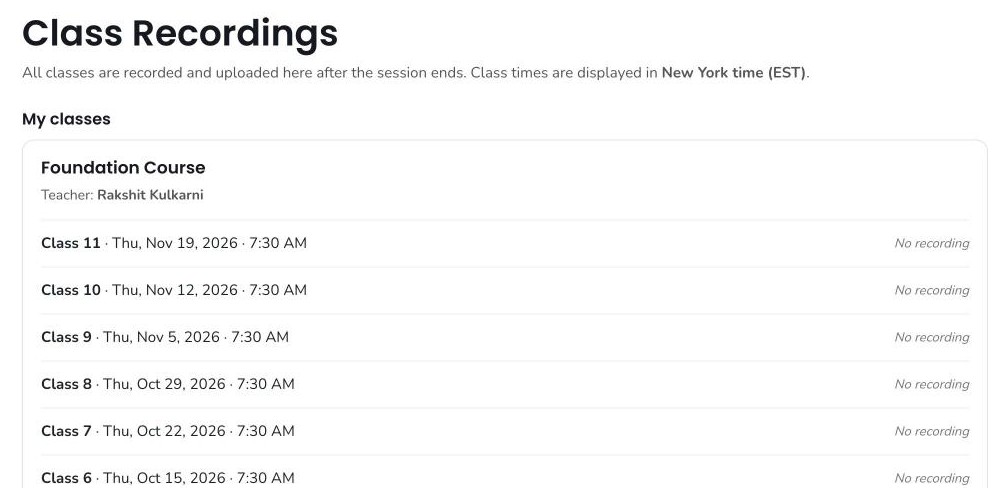
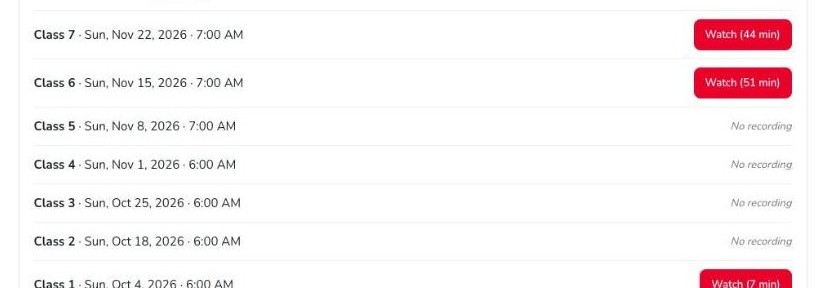
Every live class is recorded. After the class, the recording appears in Class Recordings. Click the red Watch button to play it. “No recording” means there is no video for that class.
7. Question & Answer – ask your teacher
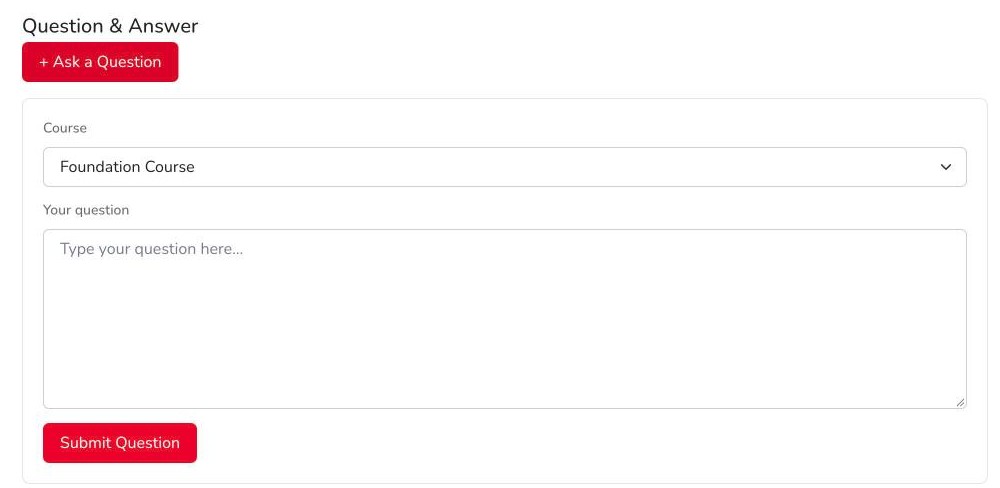
- Click Question & Answer, then + Ask a Question.
- Choose your course, type your question and click Submit Question.
- Only you and your teacher can see your question. The reply shows on the same page.
8. My Quiz Attempts
If your course has quizzes, your results appear here.
9. My Profile and Settings
- My Profile – see your details.
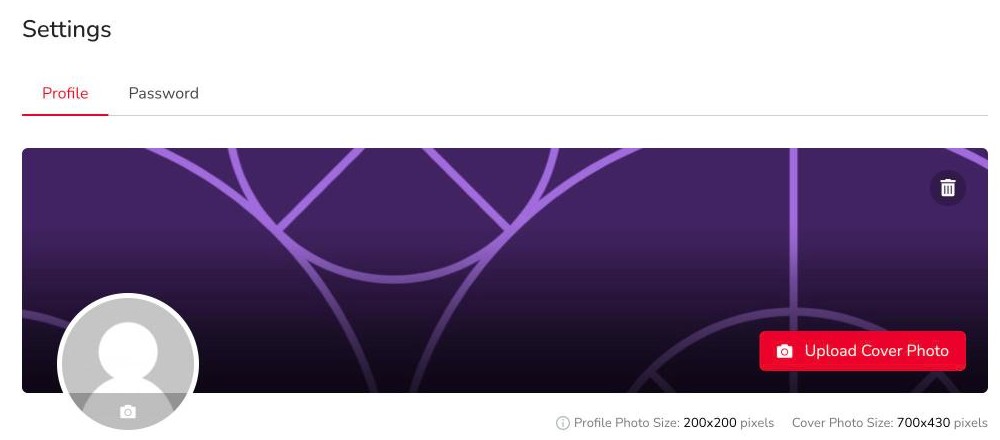
- Settings → Profile – change your photo, name, phone number and bio, then click Update Profile.
- Settings → Password – change your password.
10. Logout
Click Logout at the bottom of the menu.
Need help?
Email us at contact@qalajunction.com. Happy learning! 🎶


